Quick Start Guide
Get up and running with TagOps in under 5 minutes.
Prerequisites
Before you begin, ensure you have:
- [ ] AWS account with administrative access
- [ ] Email address for TagOps account
- [ ] AWS Account ID (12-digit number)
- [ ] CloudTrail enabled (recommended for event-based tagging)
Step 1: Subscribe on AWS Marketplace
- Open AWS Marketplace and search for TagOps
- Open the TagOps listing and subscribe
- Complete registration from the Marketplace fulfillment flow
- Sign in to the TagOps console with the credentials from your welcome email
Marketplace subscription
TagOps is billed through AWS Marketplace. Account limits and trial terms come from your Marketplace entitlement. Manage billing, upgrades, and cancellations in AWS Marketplace.
If you start on a free trial, subscribe to a paid plan before the trial ends if you want to keep the same tenant and onboarded account. See Subscription Management.
Step 2: Add Your First AWS Account
2.1 Prepare Account Information
Gather the following information:
- Account Name: A friendly name (e.g., "Production Account")
- AWS Account ID: Your 12-digit AWS account number
- IAM Role Name: Use default
tagops-exec-account-roleor modify per your requirements. - AWS Regions: Decide which regions you would like to onboard
2.2 Add Account via UI
- Navigate to AWS Accounts in the sidebar
- Click Add AWS Account
- Fill in the form with:
- Account Name:
Production Account - AWS Account ID:
123456789012 - IAM Role Name:
tagops-exec-account-role - External ID: Auto-generated value provided by TagOps
- Account Name:
2.3 Provision CloudFormation Stack
TagOps uses CloudFormation to create the necessary IAM role in your AWS account:
- Click Provision CloudFormation Stack in the dialog
- You'll be redirected to AWS CloudFormation console
- Review the stack parameters (pre-filled from the form)
- Make sure to update the regions you want to be onboarded in the cloudformation stack.
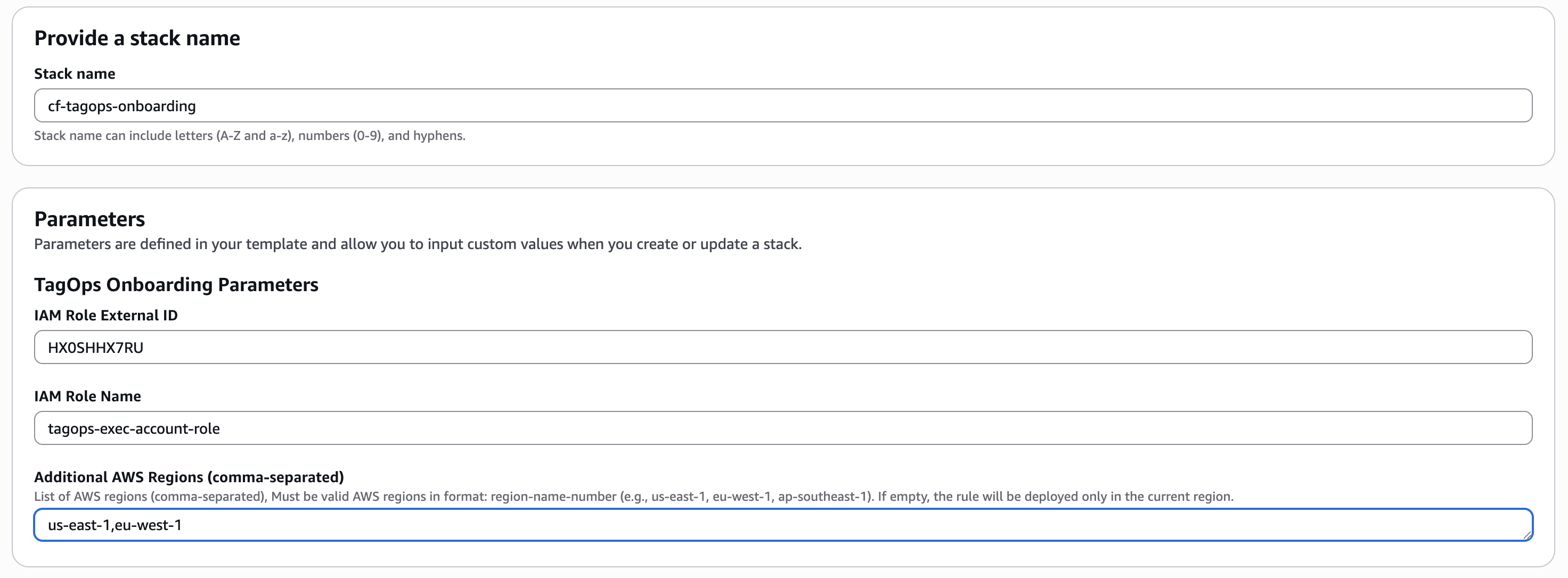
- Make sure to update the regions you want to be onboarded in the cloudformation stack.
- Check the acknowledgment box for IAM resource creation
- Click Create Stack
- Wait for stack creation to complete (1-2 minutes)
Manual CloudFormation Option
If you need to create the stack manually or in a different session, use Copy CF Link to save the CloudFormation quick-create URL.
2.4 Verify Account
- Return to the TagOps account dialog
- Click Verify Account
-
TagOps will:
- Verify IAM role exists
- Check role permissions
- Test cross-account assume role
- Detect CloudTrail status
-
Wait for verification success ✓
2.5 Complete Account Addition
- Once verified, click Add Account
-
TagOps will:
- Register the account
- Initialize configuration
- Prepare for scanning
-
You'll see a success notification
Step 3: Configure Services to Scan
Define which AWS services and regions TagOps should monitor:
- Navigate to Settings → Account Settings
- Select your AWS account from the dropdown
- Configure Allowed Regions:
- Click Edit in the Allowed Regions section
- Select regions to monitor (e.g.,
us-east-1,us-west-2,eu-west-1) -
Click Save
-
Configure Allowed Services:
-
Scroll to the Service Configuration section
- Click Edit
- Choose your approach:
- Allow All Services: Tag all supported services (default)
- Custom Selection: Select specific services
-
For custom selection, expand service categories and check desired resource types:
☑ ec2:instance
☑ ec2:volume
☑ s3:bucket
☑ lambda:function
☑ rds:instance
-
Click Save
Starting Simple
Begin with a few services (e.g., EC2, S3) to learn the system, then expand to additional services.
Step 4: Create Your First Tagging Rule
Create a simple rule to tag new EC2 instances:
- Navigate to Rules in the sidebar
- Click Add New Rule to create a custom rule
-
Configure the rule:
Rule Name:
tag-ec2-environmentConditions: - Service:
ec2- Resource Type:instanceActions: - Add Tag:
Environment=Production- Add Tag:ManagedBy=TagOpsEnabled:
Yes
-
Click Save Rule
Step 5: Configure Scheduled Scanning
Enable automatic scanning to discover and tag existing resources:
- Navigate to Settings → System Settings
-
In the Scan Schedule section:
- Status: Click Enable
- Schedule Type: Select
Daily - Time: Choose a time (e.g.,
03:00 AM) - Timezone: Select your timezone (e.g.,
UTC)
-
Click Save Settings
The scan will run automatically at the scheduled time and tag resources according to your rules.
Step 6: View Your Inventory
Check the Resource Inventory to see discovered resources:
- Navigate to Inventory in the sidebar
-
You'll see:
- Service statistics at the top
- Filterable table of all resources
- Tags applied to each resource
-
Use filters to find specific resources:
- Search by name or ID
- Filter by service (EC2, S3, etc.)
- Filter by region
- Filter by account
Step 7: Upgrade from free trial to paid
Subscribe while your trial is still active if you want to keep the same tenant and onboarded account.
- Go to AWS Marketplace and open the TagOps product page.
- Click View purchase options.
- Under the Your offers tab, choose Available to purchase offers.
- Scroll down and click Subscribe.
You can also check your plan and account limit in the console under Settings → Subscription. See Subscription Management for details on what happens if the trial expires.
Next Steps
Congratulations! You've completed the TagOps quick start. Here's what to do next:
Expand Your Tagging Strategy
- Create rules with multiple conditions
Add More Accounts
- Connect additional AWS accounts to expand your tagging baseline