Cost Allocation with Tags
Easily attribute and track cloud spend across business units, projects, or teams through consistent tagging for cost allocation and financial management.
Problem Statement
The core problem that the cost allocation use case solves is the lack of financial accountability and visibility in cloud spending, specifically addressing the challenge of identifying, categorizing, and assigning cloud costs to the appropriate internal business entities.
Solution Overview
By applying standardized cost allocation tags (such as CostCenter, BusinessUnit, Project, or Application) across resources, organizations can track usage, allocate costs, and create detailed reports within AWS Cost Explorer, billing, and reporting tools. Finance teams can collaborate with engineering to ensure consistent tag usage.
Prerequisites
- Defined set of cost allocation tags (approved by finance and technical stakeholders).
- AWS account-level and resource-level tag permissions.
- AWS Cost Explorer and Billing and Cost Management permissions.
- (Optional) Tag policies and TagOps tools to enforce/validate tagging standards.
Step-by-Step Implementation
- Establish and document required cost allocation tag keys, allowed values, and usage (e.g., CostCenter, Project, Owner).
- Configure TagOps rules to automatically apply cost allocation tags to all resources when they are created or discovered. TagOps will enforce consistent tagging across all resources, stacks, and accounts based on your defined rules.
- Enable cost allocation tags in AWS Billing and Cost Management console.
- Use AWS Cost Explorer to analyze spend by the tag values and create cost allocation reports.
- Set up automation and alerts (e.g., with AWS Budgets) to notify teams about high or untagged spend.
Configuration Examples
Example Tag Key Structure:
CostCenter: "10001", "10002", etc.BusinessUnit: "Engineering", "Marketing"Project: "TagOps-Launch"Application: "WebPortal"
TagOps Rule Example: Auto-Tag Engineering Resources
Create a TagOps rule to automatically apply cost allocation tags to resources based on naming patterns. For example, tag all EC2 instances with "engineering" in their name:
TagOps Rule Configuration:
{
  "rules": {
    "TagEngineeringResources": {
      "name": "TagEngineeringResources",
      "description": "Apply cost allocation tags to Engineering department resources based on name pattern",
      "category": "cost-management",
      "enabled": true,
      "priority": 1,
      "rule": {
        "type": "add",
        "tags": [
          {
            "BusinessUnit": "Engineering"
          },
          {
            "CostCenter": "10001"
          },
          {
            "Project": "Engineering-Infrastructure"
          },
          {
            "Application": "Engineering-Tools"
          }
        ]
      },
      "condition": [
        {
          "type": "resourceType",
          "operator": "equal",
          "value": "ec2:instance"
        },
        {
          "type": "name",
          "operator": "contains",
          "value": "engineering"
        }
      ],
      "conditionOperation": "and"
    },
    "TagMarketingResources": {
      "name": "TagMarketingResources",
      "description": "Apply cost allocation tags to Marketing department resources",
      "category": "cost-management",
      "enabled": true,
      "priority": 2,
      "rule": {
        "type": "add",
        "tags": [
          {
            "BusinessUnit": "Marketing"
          },
          {
            "CostCenter": "10002"
          },
          {
            "Project": "Marketing-Campaigns"
          }
        ]
      },
      "condition": [
        {
          "type": "name",
          "operator": "contains",
          "value": "marketing"
        }
      ],
      "conditionOperation": "single"
    }
  },
  "templates": {},
  "metadata": {
    "exportedAt": "2025-11-15T08:03:41.765Z",
    "version": "1.0",
    "totalRules": 2,
    "totalTemplates": 0
  }
}
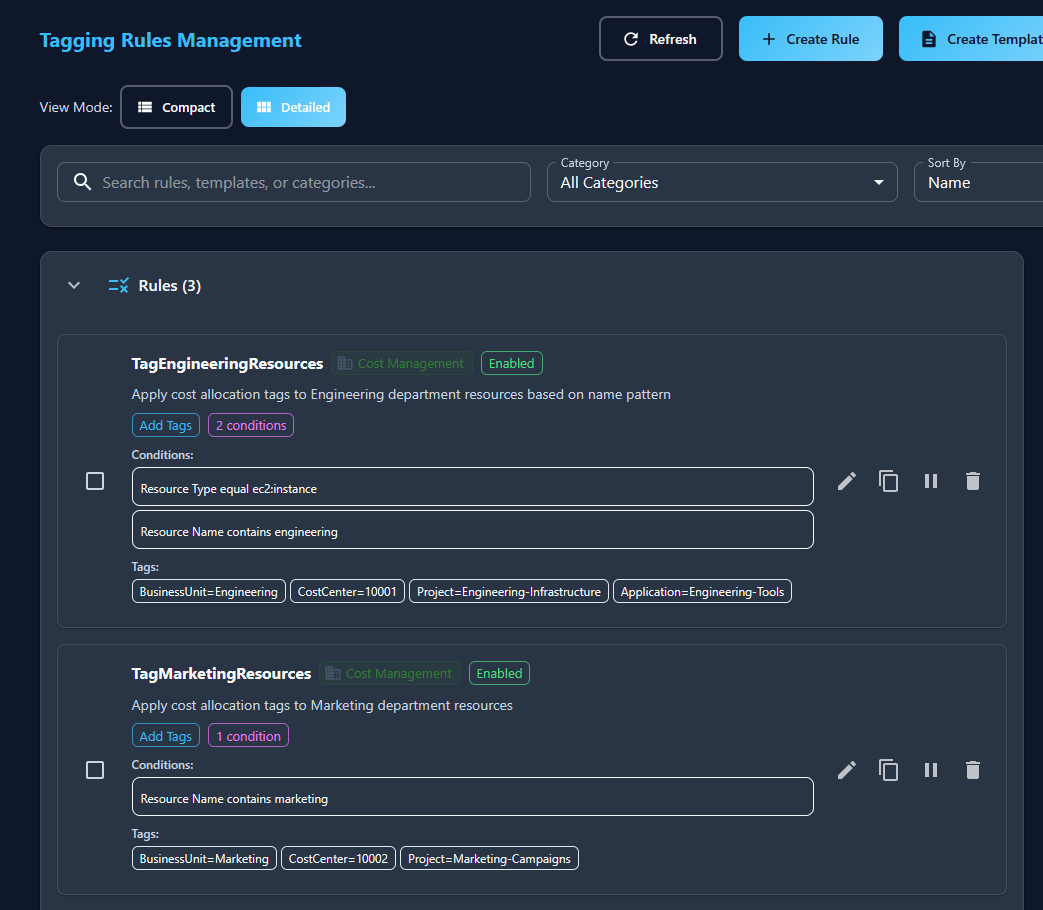
In the console, the rules should look like this after creation:
AWS CLI Example - Creating Resources:
When creating resources, you only need to set the Name tag. TagOps will automatically apply cost allocation tags based on your rules:
# Create an EC2 instance with only a Name tag

aws ec2 run-instances \
  --image-id ami-12345678 \
  --instance-type t3.micro \
  --tag-specifications 'ResourceType=instance,Tags=[{Key=Name,Value=engineering-web-server-01}]'
TagOps will automatically apply:
- BusinessUnit = Engineering
- CostCenter = 10001
- Project = Engineering-Infrastructure
- Application = Engineering-Tools
Enabling Cost Allocation Tags: - In AWS Billing and Cost Management, activate your custom tag keys as Cost Allocation Tags.
Verification
- Check Cost Explorer to verify tagged resources show up in allocation reports.
- Audit with TagOps or AWS Config/Resource Groups Tag Editor for missing or incorrect tags.
Best Practices
- Standardize and centrally document required tags and allowed values.
- Automate and enforce tagging in provisioning pipelines.
- Integrate tag compliance checks and reporting into regular financial reviews.
- Use TagOps or AWS Config to catch and remediate non-compliant resources.
Troubleshooting
- Missing tags in cost allocation reports: double-check that tags are activated.
- Inconsistent tagging: review tagging policies and CI/CD pipeline scripts.
- Tag drift or overwrite: establish controls and automation to enforce standards.