Use Case: Cost Anomaly Detection and Budget Management with Tags
Overview
Implement proactive cost monitoring and anomaly detection using tag-based segmentation to identify unexpected spending patterns, prevent budget overruns, and enable rapid response to cost anomalies across departments, projects, and environments.
Problem Statement
Organizations face significant challenges in managing cloud costs:
- Unexpected cost spikes that go unnoticed until the monthly bill arrives
- Difficulty identifying which team, project, or service is responsible for cost increases
- Inability to set granular budgets aligned with organizational structure
- Lack of timely alerts when spending deviates from expected patterns
- Reactive rather than proactive cost management
Without tag-based cost monitoring and anomaly detection, organizations struggle to maintain cost discipline, respond quickly to issues, and prevent budget overruns before they impact financial planning.
Solution Overview
By combining TagOps-enforced tagging standards with AWS Cost Anomaly Detection, AWS Budgets, and AWS Cost Explorer, organizations can:
- Create granular cost monitors based on cost allocation tags (Project, Department, Environment)
- Leverage machine learning to detect unusual spending patterns automatically
- Set up tag-based budgets with multi-threshold alerts
- Enable rapid root cause analysis and response to cost anomalies
- Track spending trends across organizational dimensions
TagOps ensures all resources are consistently tagged, enabling accurate cost segmentation and anomaly detection at any desired granularity level.
Prerequisites
- AWS Cost Management permissions (Cost Explorer, Anomaly Detection, Budgets)
- Comprehensive tagging strategy implemented and enforced via TagOps
- Activated cost allocation tags in AWS Billing and Cost Management console
- IAM permissions to:
- Create and manage AWS Cost Anomaly Detection monitors
- Configure AWS Budgets
- Set up SNS topics for alerting
- Access CloudWatch for logging and monitoring
- (Optional) Integration with incident management systems (PagerDuty, ServiceNow, Slack)
Step-by-Step Implementation
1. Ensure Comprehensive Tagging Coverage
Before implementing cost anomaly detection, verify complete tagging coverage using TagOps:
- Audit existing resources for missing tags
- Configure TagOps rules to enforce required cost allocation tags
- Implement automated remediation for untagged resources
- Define tag structure:
Project,Department,Environment,CostCenter,Owner
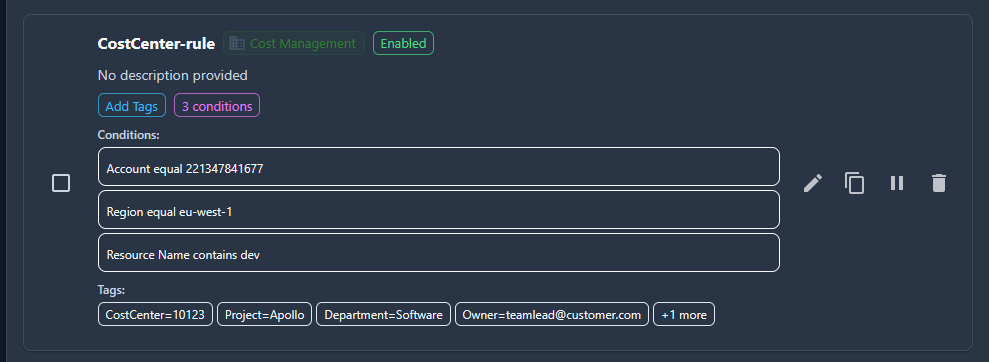
For example a rule can look like this:
2. Activate Cost Allocation Tags
- Navigate to AWS Billing and Cost Management console (management account)
- Go to Cost Allocation Tags section
- Activate all tags relevant to cost monitoring (Project, Department, Environment, etc.)
- Wait 24 hours for tags to become available in cost data
3. Configure AWS Cost Anomaly Detection Monitors
Create Tag-Based Cost Monitors:
Monitor 1: Cost Allocation Tag Monitor (by Project)
- Monitor type: Cost allocation tags
- Tag key:
Project - Frequency: Individual alerts
- Threshold: Anomalies with impact > $500
Monitor 2: Cost Allocation Tag Monitor (by Department)
- Monitor type: Cost allocation tags
- Tag key:
Department - Frequency: Daily summary
- Threshold: Anomalies with impact > $1,000
Monitor 3: Cost Allocation Tag Monitor (by Environment)
- Monitor type: Cost allocation tags
- Tag key:
Environment - Frequency: Individual alerts
- Threshold: Anomalies with impact > $100 (for production), $500 (for dev/test)
Monitor 4: Linked Account Monitor
- Monitor type: Linked accounts
- Scope: All accounts in AWS Organization
- Frequency: Individual alerts
- Threshold: Anomalies with impact > $2,000
4. Configure Alert Subscriptions
Set Up SNS Topics for Different Teams:
# Create SNS topic for engineering team
aws sns create-topic --name engineering-cost-alerts

# Subscribe engineering team email
aws sns subscribe \
  --topic-arn arn:aws:sns:us-east-1:123456789012:engineering-cost-alerts \
  --protocol email \
  --notification-endpoint engineering-team@company.com

# Create SNS topic for finance team
aws sns create-topic --name finance-cost-alerts

# Subscribe finance team
aws sns subscribe \
  --topic-arn arn:aws:sns:us-east-1:123456789012:finance-cost-alerts \
  --protocol email \
  --notification-endpoint finance@company.com
Configure Alert Subscriptions in Cost Anomaly Detection:
- Create subscription for each department/project
- Set threshold (absolute dollar amount or percentage)
- Configure delivery frequency (individual, daily, weekly)
- Specify recipients (email or SNS topic)
5. Create Tag-Based AWS Budgets
Budget 1: Per-Department Budget
aws budgets create-budget \
  --account-id 123456789012 \
  --budget file://department-budget.json \
  --notifications-with-subscribers file://notifications.json
department-budget.json:
{
  "BudgetName": "Engineering-Department-Budget",
  "BudgetLimit": {
    "Amount": "50000",
    "Unit": "USD"
  },
  "TimeUnit": "MONTHLY",
  "BudgetType": "COST",
  "CostFilters": {
    "TagKeyValue": ["user:Department$Engineering"]
  }
}
notifications.json:
[
  {
    "Notification": {
      "NotificationType": "ACTUAL",
      "ComparisonOperator": "GREATER_THAN",
      "Threshold": 80,
      "ThresholdType": "PERCENTAGE"
    },
    "Subscribers": [
      {
        "SubscriptionType": "EMAIL",
        "Address": "engineering-lead@company.com"
      },
      {
        "SubscriptionType": "SNS",
        "Address": "arn:aws:sns:us-east-1:123456789012:engineering-cost-alerts"
      }
    ]
  },
  {
    "Notification": {
      "NotificationType": "ACTUAL",
      "ComparisonOperator": "GREATER_THAN",
      "Threshold": 100,
      "ThresholdType": "PERCENTAGE"
    },
    "Subscribers": [
      {
        "SubscriptionType": "EMAIL",
        "Address": "finance@company.com"
      }
    ]
  }
]
Budget 2: Per-Project Budget
- Create individual budgets for each high-value project
- Filter by
Projecttag - Set multi-threshold alerts (50%, 80%, 100%, 120%)
Budget 3: Environment-Based Budget
- Separate budgets for Production, Development, and Test
- Filter by
Environmenttag - Different thresholds based on environment criticality
6. Integrate with Incident Management Systems
Slack Integration via SNS:
# Subscribe Slack webhook to SNS topic
aws sns subscribe \
  --topic-arn arn:aws:sns:us-east-1:123456789012:engineering-cost-alerts \
  --protocol https \
  --notification-endpoint https://hooks.slack.com/services/YOUR/WEBHOOK/URL
Lambda Function for Advanced Alert Processing:
Create Lambda function triggered by SNS to:
- Parse anomaly details
- Enrich with resource metadata from tags
- Create tickets in ServiceNow or Jira
- Send formatted alerts to Slack with context
7. Set Up CloudWatch Dashboards for Cost Visibility
Create custom dashboards showing: - Cost trends by tag (Department, Project, Environment) - Active anomalies and their status - Budget utilization by tag - Top cost-driving resources by tag
8. Establish Response Procedures
Anomaly Response Workflow:
- Alert received via email/SNS/Slack
- Review anomaly in Cost Anomaly Detection dashboard
- Use Cost Explorer to drill down by tag for root cause
- Identify specific resources/services driving costs
- Take corrective action (stop instances, adjust scaling, etc.)
- Document incident and update budgets/thresholds if needed
Configuration Examples
TagOps Rule for Cost Monitoring Tags
Create a TagOps rule to automatically tag resources with cost allocation tags. In the TagOps Rules page, create a new rule with the following configuration:
Rule Configuration:
{
  "rules": {
    "EnforceCostMonitoringTags": {
      "name": "EnforceCostMonitoringTags",
      "description": "Enforce cost allocation tags on EC2, RDS, S3, Lambda, and DynamoDB resources",
      "category": "cost-management",
      "enabled": true,
      "priority": 1,
      "rule": {
        "type": "add",
        "tags": [
          {
            "Project": "DefaultProject"
          },
          {
            "Department": "Engineering"
          },
          {
            "Environment": "Production"
          },
          {
            "CostCenter": "10001"
          }
        ]
      },
      "condition": [
        {
          "type": "serviceResourceType",
          "operator": "isIn",
          "value": ["ec2", "rds", "s3", "lambda", "dynamodb"]
        }
      ],
      "conditionOperation": "single"
    },
    "TagEC2InstancesByEnvironment": {
      "name": "TagEC2InstancesByEnvironment",
      "description": "Tag EC2 instances in production region with environment tag",
      "category": "cost-management",
      "enabled": true,
      "priority": 2,
      "rule": {
        "type": "add",
        "tags": [
          {
            "Environment": "Production"
          },
          {
            "Department": "Engineering"
          }
        ]
      },
      "condition": [
        {
          "type": "resourceType",
          "operator": "equal",
          "value": "ec2:instance"
        },
        {
          "type": "region",
          "operator": "equal",
          "value": "us-east-1"
        }
      ],
      "conditionOperation": "and"
    }
  },
  "templates": {},
  "metadata": {
    "exportedAt": "2025-11-15T08:03:41.765Z",
    "version": "1.0",
    "totalRules": 2,
    "totalTemplates": 0
  }
}
Creating the Rule in TagOps UI:
- Navigate to Rules page in TagOps
- Click Add New Rule
-
Basic Information:
- Name:
EnforceCostMonitoringTags - Description:
Enforce cost allocation tags on resources - Category:
cost-management
- Name:
-
Conditions:
- Condition Operation:
Single Condition - Condition Type:
Service - Operator:
isIn - Value: Select
ec2,rds,s3,lambda,dynamodb
- Condition Operation:
-
Actions:
- Action Type:
Add Tag - Add tags:
Project=DefaultProjectDepartment=EngineeringEnvironment=ProductionCostCenter=10001
- Action Type:
-
Advanced Settings:
- Priority:
1 - Enabled:
Yes
- Priority:
-
Save the rule
Using Tag Templates (Recommended):
For better management, create a Tag Template with cost allocation tags:
- Create a Tag Template named
CostAllocationTemplate -
Add constant tags:
Project,Department,Environment,CostCenter
-
Optionally add dynamic tags:
createdBy,creationDate,region,accountId
-
Create a rule that uses this template:
- Condition: Match resources by service or resource type
- Action: Apply template
CostAllocationTemplate
Cost Explorer Saved Report Configuration
Create saved reports for:
- Monthly costs grouped by
Departmenttag - Daily costs grouped by
Projecttag - Weekly costs grouped by
Environmenttag - Comparison of current vs. previous month by tag
SCP to Prevent Cost Overruns (Advanced)
{
  "Version": "2012-10-17",
  "Statement": [
    {
      "Sid": "DenyExpensiveInstanceTypes",
      "Effect": "Deny",
      "Action": "ec2:RunInstances",
      "Resource": "arn:aws:ec2:*:*:instance/*",
      "Condition": {
        "StringEquals": {
          "ec2:InstanceType": ["p4d.24xlarge", "p5.48xlarge"]
        },
        "StringNotEquals": {
          "aws:RequestTag/Project": "ApprovedMLProject"
        }
      }
    }
  ]
}
Verification
Verify Cost Anomaly Detection Setup
- Navigate to AWS Cost Management → Cost Anomaly Detection
- Confirm monitors are active and detecting anomalies
- Verify alert subscriptions are properly configured
- Test SNS topics by publishing test messages
Verify Budget Configuration
- Check AWS Budgets dashboard for all configured budgets
- Confirm budget filters correctly reference cost allocation tags
- Verify notification thresholds are set appropriately
- Test by simulating threshold breach (if possible in non-prod)
Verify Tagging Coverage for Cost Monitoring
- Use AWS Resource Groups Tag Editor to search for untagged resources
- Run AWS Config rule
required-tagsto identify non-compliance - Review TagOps compliance dashboard
- Check Cost Explorer for unallocated costs (resources without tags)
Test Alerting Workflow
- Confirm receipt of test alerts via all channels (email, SNS, Slack)
- Verify alert content includes sufficient detail for action
- Test escalation paths for different anomaly thresholds
Best Practices
-
Start with Broad Monitors, Refine Over Time: Begin with organization-wide anomaly detection, then add granular tag-based monitors as patterns emerge
-
Set Realistic Thresholds: Start with higher thresholds to avoid alert fatigue; gradually lower as team becomes comfortable with normal patterns
-
Use Multiple Alert Channels: Combine email, SNS, and chat integrations to ensure alerts reach the right people
-
Implement Tiered Budgets: Create multiple budget thresholds (e.g., 50%, 80%, 100%, 120%) with escalating notifications
-
Automate Tagging for Anomaly Response: Ensure all resources have Owner/Contact tags so anomalies can be quickly routed to responsible teams
-
Combine Anomaly Detection with Budgets: Use anomaly detection for unexpected patterns and budgets for hard spending limits
-
Regular Review and Tuning: Monthly review of anomaly patterns, false positives, and budget utilization to refine configurations
-
Document Normal Patterns: Maintain documentation of expected cost spikes (e.g., month-end processing, seasonal traffic) to reduce false positives
-
Tag Seasonal Resources: Use tags to identify temporary or seasonal resources to help ML models adapt
-
Integrate with FinOps Practices: Align cost anomaly detection with broader financial operations and optimization initiatives
Troubleshooting
High Volume of False Positive Alerts
- Issue: Receiving too many anomaly alerts for normal cost variations
- Solution:
- Increase alert threshold (dollar amount or percentage)
- Review seasonality settings in anomaly detection
- Exclude known variable workloads from individual alerts (use daily/weekly summaries)
- Document and tag expected cost spikes
Anomalies Not Detected
- Issue: Known cost spike not flagged by anomaly detection
- Solution:
- Verify 24-hour waiting period for new monitors has passed
- Check that affected resources have proper cost allocation tags
- Review monitor scope and filters
- Lower threshold if set too high
- Allow more time for ML model to learn patterns (14+ days)
Budget Alerts Not Triggering
- Issue: Spending exceeded budget but no alert received
- Solution:
- Verify SNS topic subscriptions are confirmed (check email)
- Check budget filter tags match resource tags exactly (case-sensitive)
- Confirm budget is using ACTUAL costs, not FORECASTED
- Review CloudTrail logs for budget notification delivery attempts
Unable to Determine Root Cause of Anomaly
- Issue: Anomaly detected but cause unclear
- Solution:
- Use Cost Explorer with tag grouping to drill down
- Filter Cost Explorer by time range of anomaly
- Check CloudTrail for resource creation events during anomaly period
- Review resource tags to identify owner/team for follow-up
- Use AWS Cost and Usage Report for detailed line-item analysis
Untagged Resources Causing Incomplete Cost Visibility
- Issue: Significant portion of costs not associated with tags in anomaly detection
- Solution:
- Use TagOps scanning features to identify untagged resources across your accounts
- Create TagOps rules to automatically tag existing untagged resources
- Implement SCP to prevent creation of untagged resources (enforcement at creation)
- Use AWS Config rules to detect untagged resources and trigger TagOps remediation
- Schedule periodic TagOps scans to catch newly created untagged resources
Tag Drift After Creation
- Issue: Resources losing tags over time, affecting cost tracking
- Solution:
- Implement SCP to prevent tag deletion
- Use AWS Config to detect and auto-remediate tag changes
- Restrict IAM permissions for modifying cost allocation tags
- Set up CloudWatch Events to alert on tag modification
Overlapping or Contradictory Budgets
- Issue: Multiple budgets covering same resources causing confusion
- Solution:
- Document budget hierarchy and scope clearly
- Use mutually exclusive tag filters where possible
- Leverage AWS Cost Categories to group tags hierarchically
- Consolidate overlapping budgets into single budget with multiple thresholds
Additional Resources
- AWS Cost Anomaly Detection: https://aws.amazon.com/aws-cost-management/aws-cost-anomaly-detection/
- AWS Budgets: https://aws.amazon.com/aws-cost-management/aws-budgets/
- AWS Cost Explorer: https://aws.amazon.com/aws-cost-management/aws-cost-explorer/
- AWS Cost and Usage Report: https://docs.aws.amazon.com/cur/latest/userguide/what-is-cur.html